Hello @Llaqta_Ingenieros, thanks for your detailed description. Based on your requirements, we can handle this using three different options:
1. Manual input widget
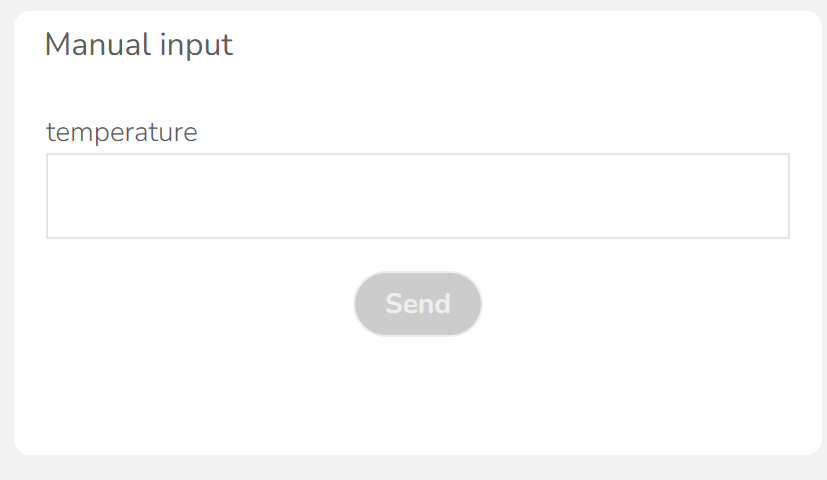
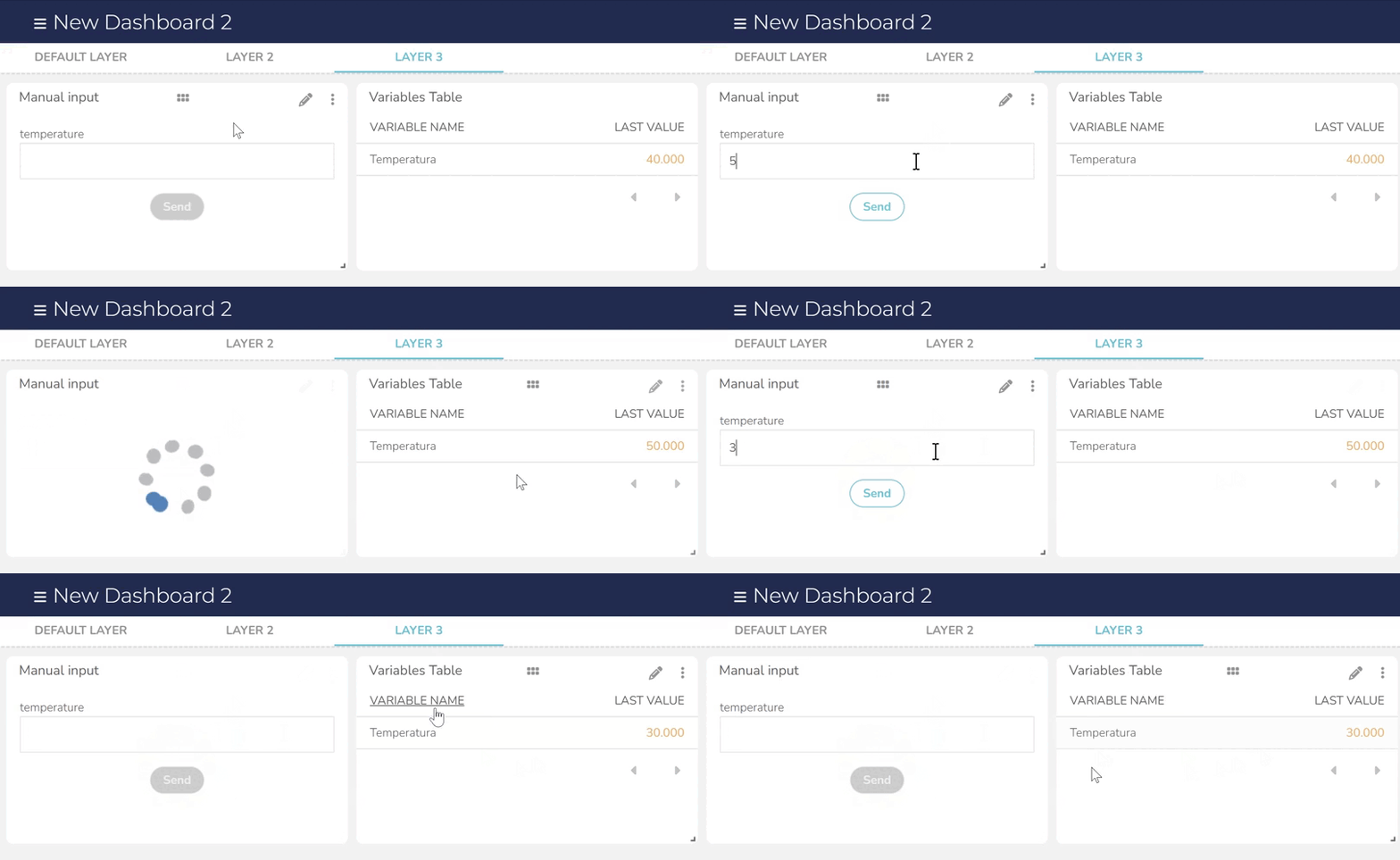
The Manual Input widget offers the simplest way to send data to your variables, on a dashboard. You simply select the device and variable you wish to update, and the widget provides a text field to input and send values directly, without requiring any external logic.
However, this widget has the limitation you mentioned: it does not retain the last value sent or display the current variable value. Every time you submit a value, the field resets to empty, which doesn’t align with your ideal scenario. The best workaround is to place a Variables Table widget next to the manual input; this way, with the Real time enabled, you will see the table update automatically to confirm the new value immediately after you send it.
2. Custom UI widget
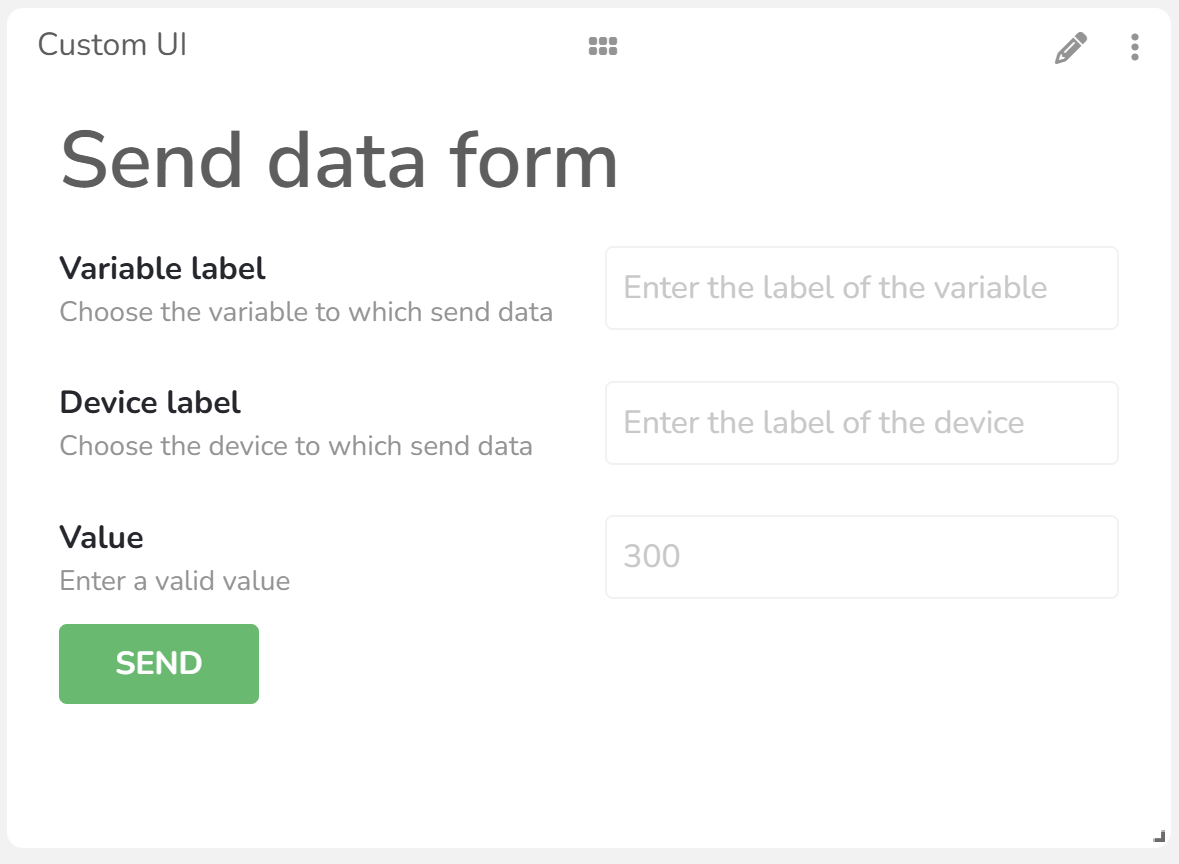
The second option, as you suggested, is to use a Custom UI widget. This allows you to configure fields for the variable label and device label, as well as input a numeric value to send for each variable.
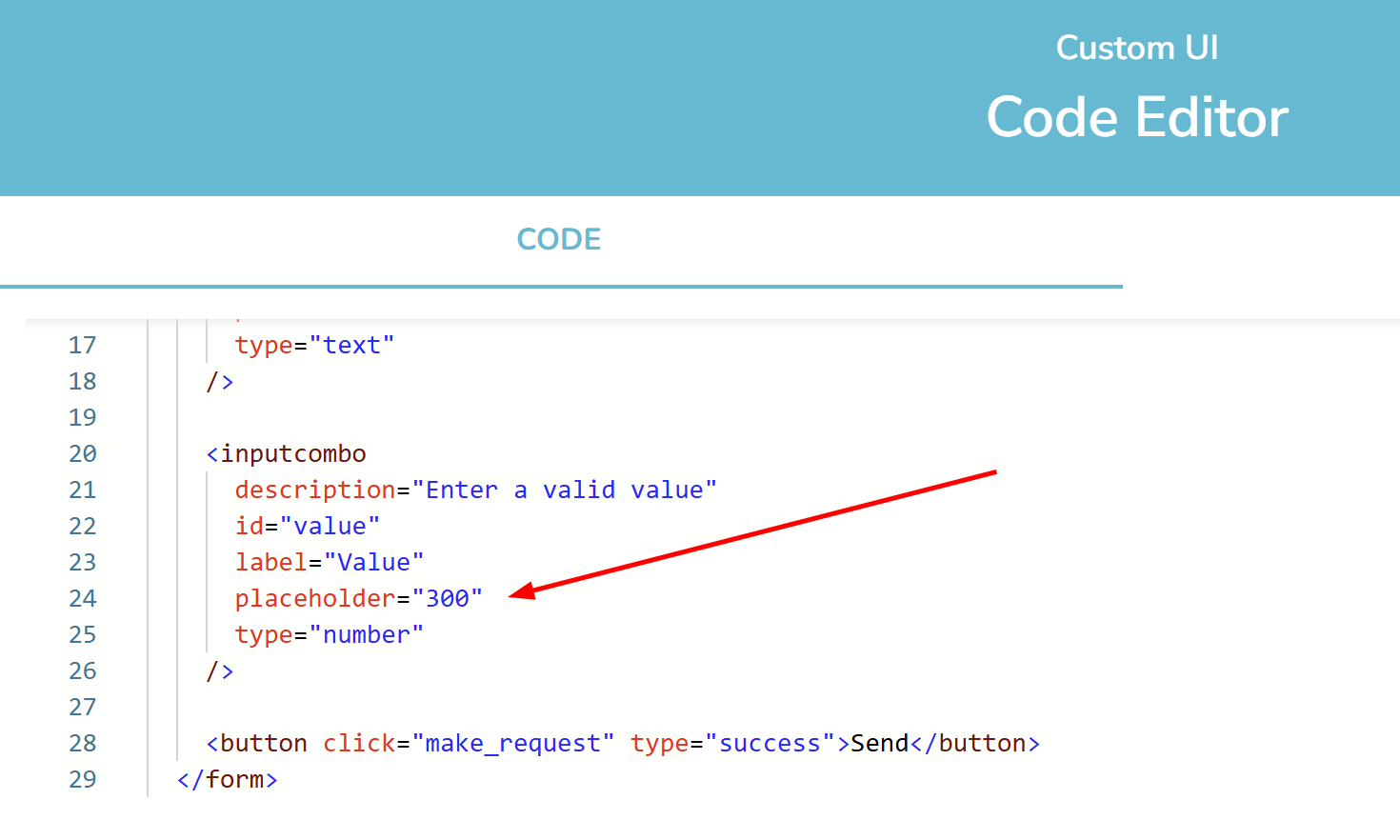
Similar to the previous option, this widget doesn’t store or display the variable’s last value, so the field will appear empty every time the dashboard is refreshed. The previous image shows a similar example using a placeholder defined in the code; you can use this setting to display a default value whenever the text field is empty:
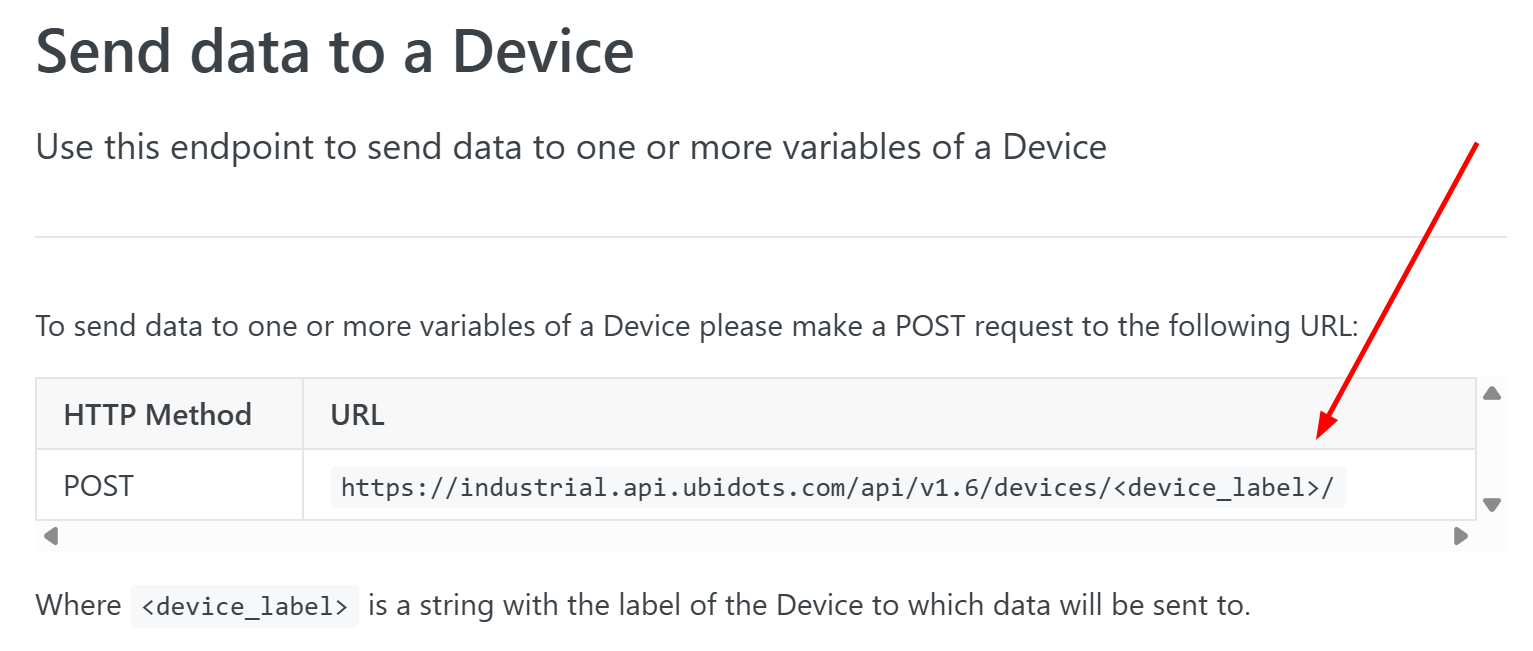
However, we face a problem here: when configuring a webhook action in the Custom UI, you need to set the URL, but our data ingestion endpoint requires the device label to be included directly in that URL structure.
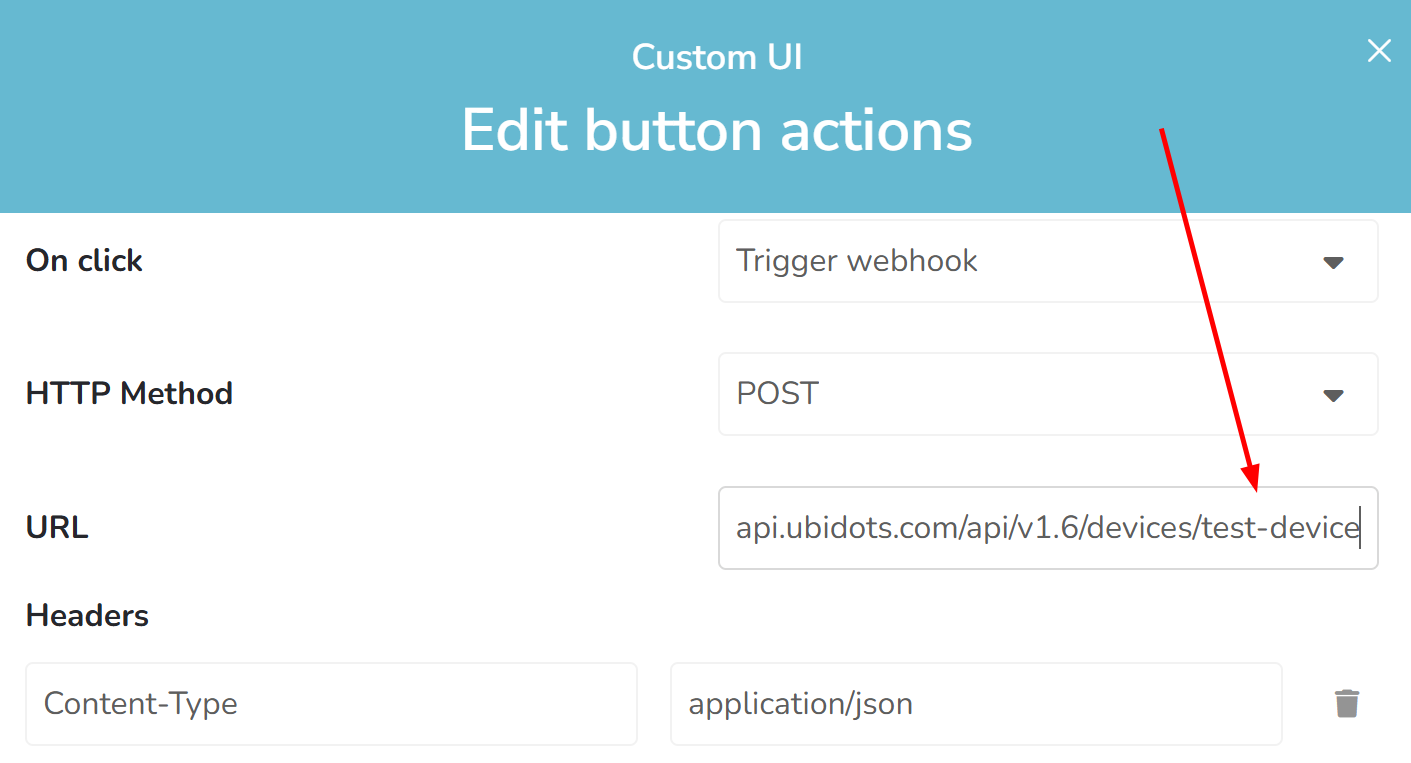
You can manually type the device label directly into the URL, as shown in the following image; however, this is not very efficient. It would require you to manually update the label every time you replicate the widget for a different device.
3. HTML Canvas
While the previous options are functional, they don’t fully meet your specific requirements. In this scenario, the best alternative is to create an HTML Canvas widget. This powerful tool allows you to use your own HTML, CSS, and JavaScript to build a custom solution. You can design a simple form similar to the Manual Input widget that sends data via a button, but with the added benefit of using a simple API GET request to retrieve and display the variable’s last stored value in the text field every time the dashboard loads.
This article will help you understand how to connect your JavaScript logic to your account data and use our API:
HTML Canvas Widget: Interacting with account data | Ubidots Help Center
Please let me know if this helpful for you or you still need further assistance.
Best regards,
Alejandro