How to store a string (device/variable API label) in Ubidots and use it dynamically in a Function

Question:
I want to create a UI input where a user can type:

  1. The API label of a device.
  2. The API label of a variable belonging to that device.

Later, with those two values, I want to send a numeric value to that selected device and variable. In other words, the target device and variable are not fixed — they are chosen dynamically by entering their API labels in text fields.

What is the simplest working example (Custom UI + UbiFunction or webhook) that lets me:

  • accept device and variable labels as strings (text inputs),
  • then send a numeric value to the variable I selected,
  • all in one flow.

Also: Is it possible to store those strings somewhere (e.g. in a context variable or another Ubidots variable) so the user doesn’t need to retype them each time?

I’m using JavaScript / Ubidots Cloud Functions. Any working snippet or guidance is welcome.

Hello @Llaqta_Ingenieros, thanks for your detailed description. Based on your requirements, we can handle this using three different options:

1. Manual input widget

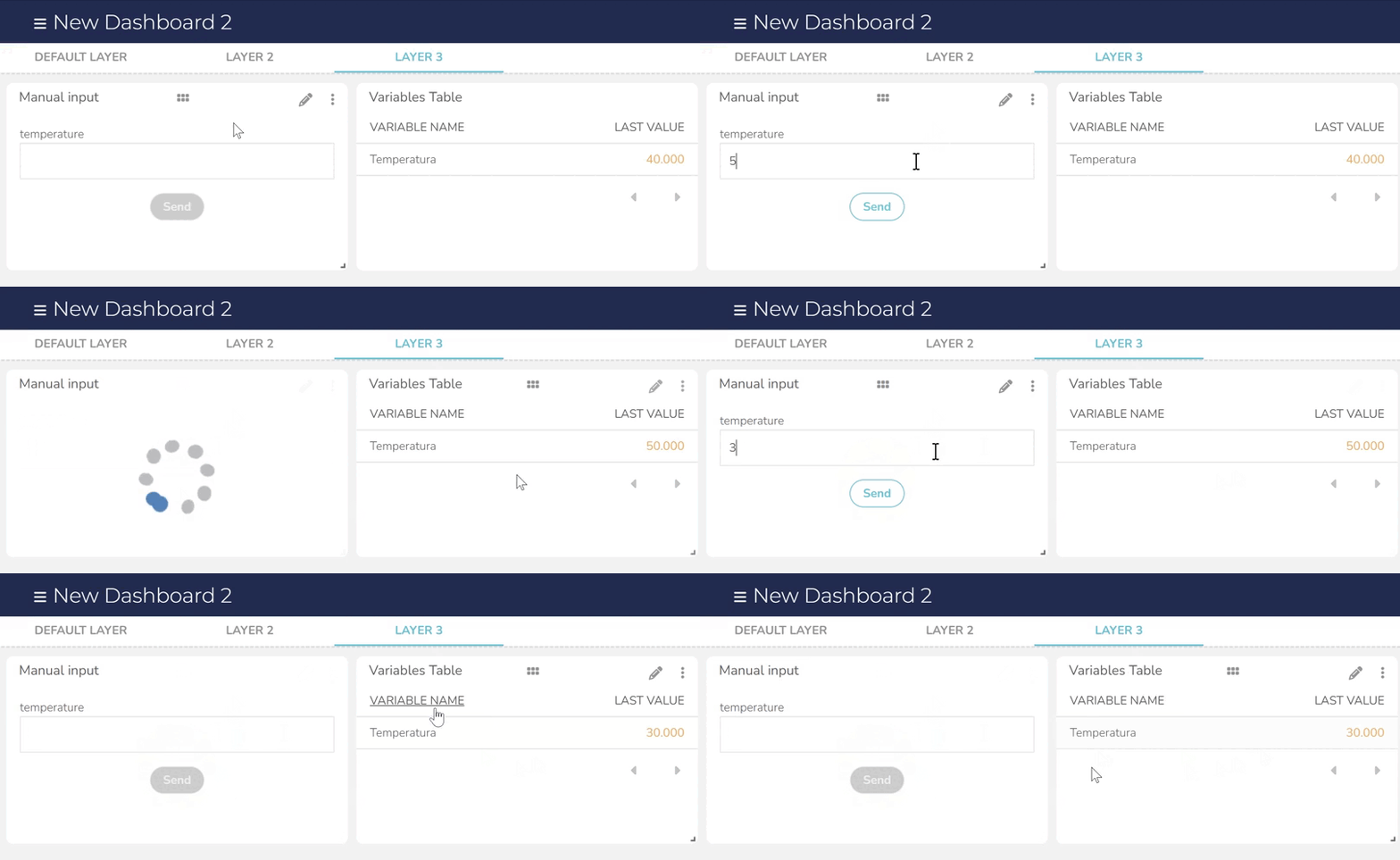
The Manual Input widget offers the simplest way to send data to your variables, on a dashboard. You simply select the device and variable you wish to update, and the widget provides a text field to input and send values directly, without requiring any external logic.

However, this widget has the limitation you mentioned: it does not retain the last value sent or display the current variable value. Every time you submit a value, the field resets to empty, which doesn’t align with your ideal scenario. The best workaround is to place a Variables Table widget next to the manual input; this way, with the Real time enabled, you will see the table update automatically to confirm the new value immediately after you send it.
Desktop 2025-12-01 6-00-24 p

2. Custom UI widget

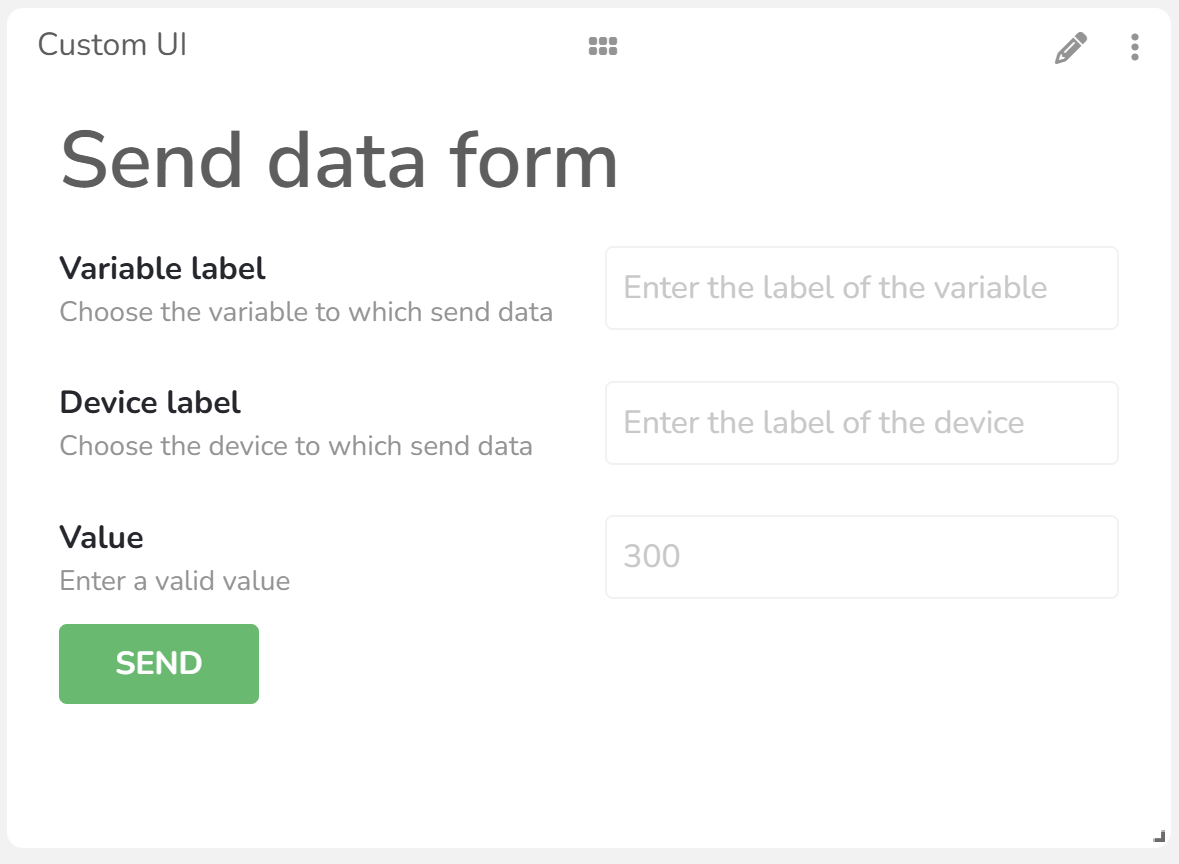
The second option, as you suggested, is to use a Custom UI widget. This allows you to configure fields for the variable label and device label, as well as input a numeric value to send for each variable.

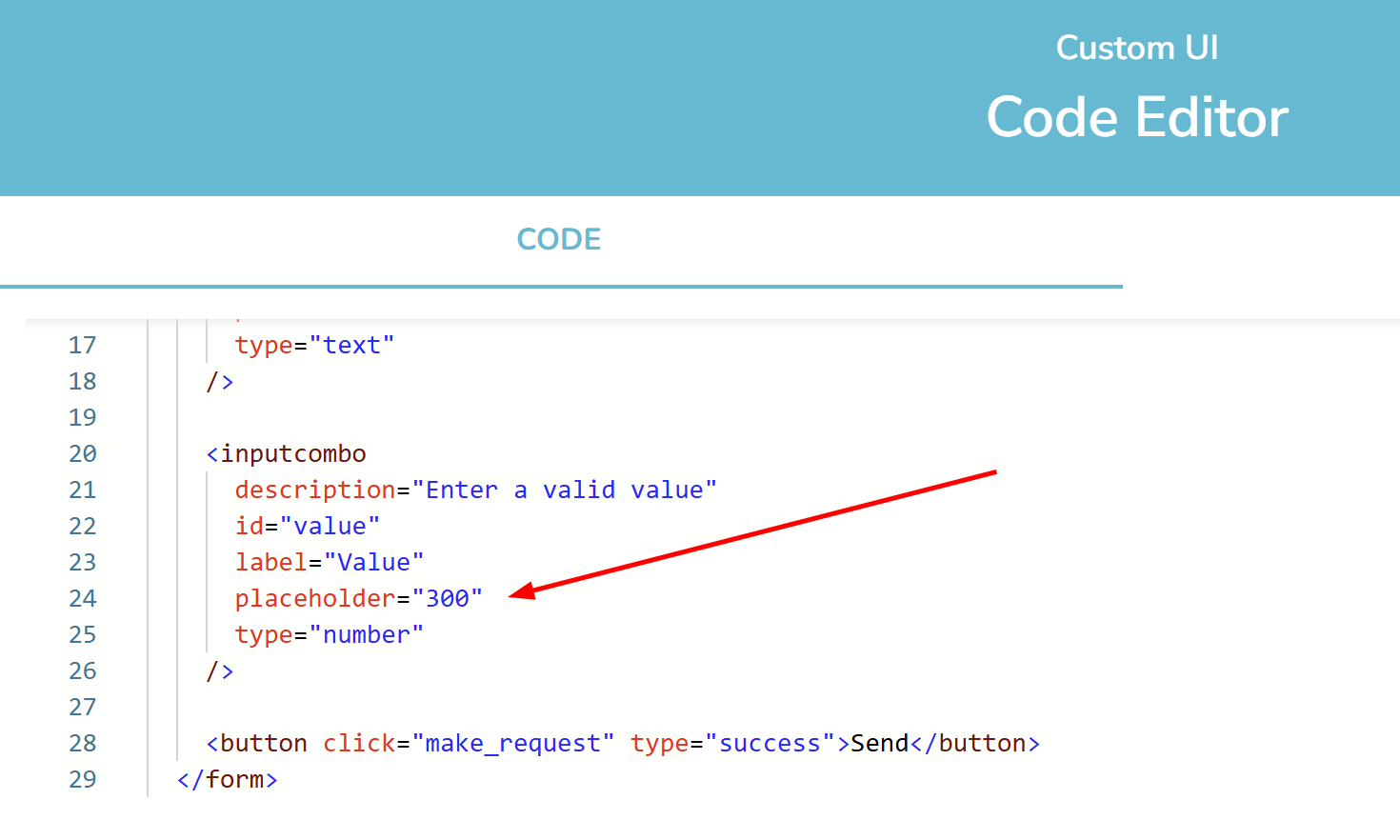
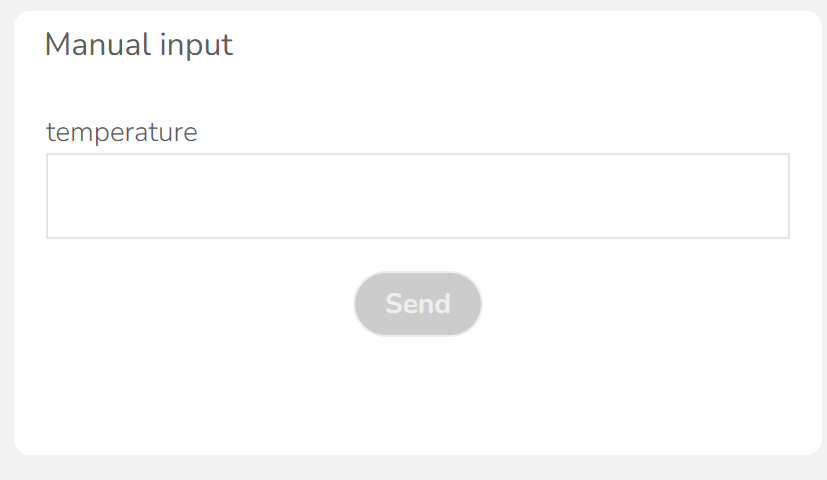
Similar to the previous option, this widget doesn’t store or display the variable’s last value, so the field will appear empty every time the dashboard is refreshed. The previous image shows a similar example using a placeholder defined in the code; you can use this setting to display a default value whenever the text field is empty:

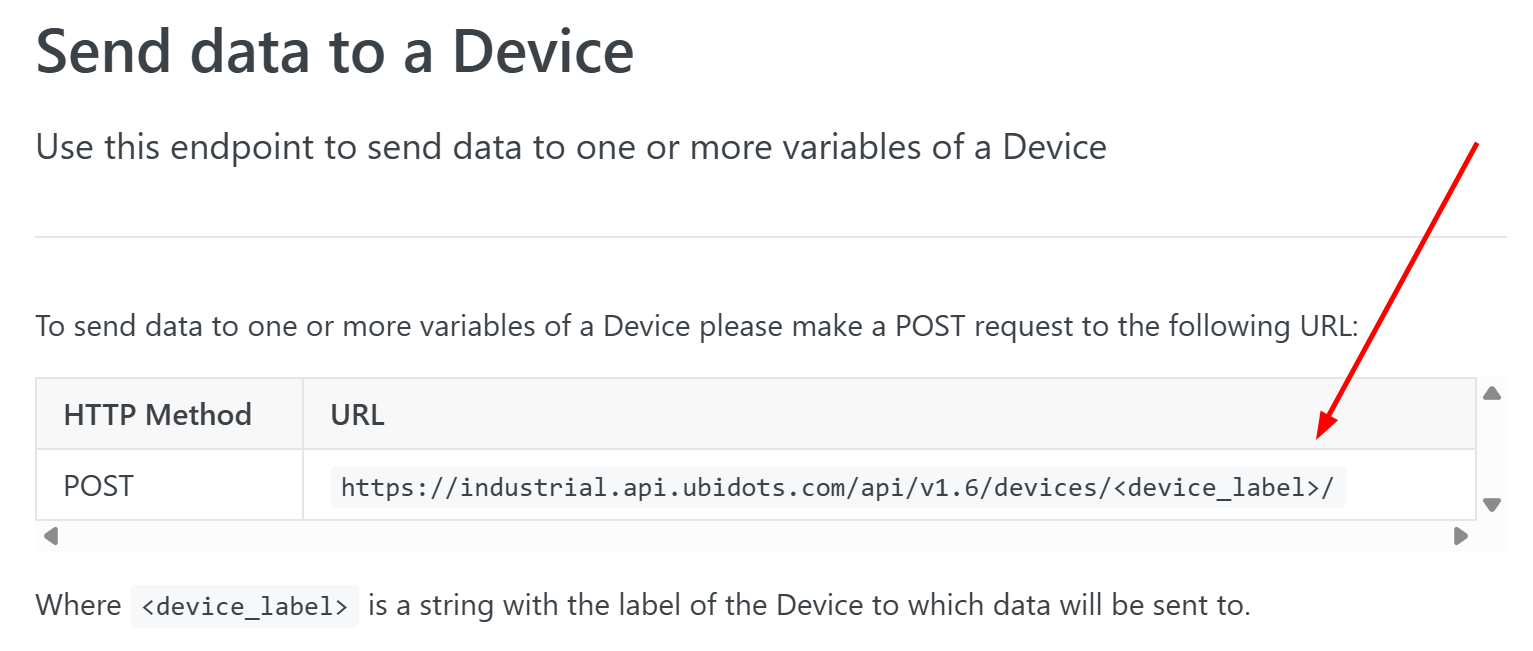
However, we face a problem here: when configuring a webhook action in the Custom UI, you need to set the URL, but our data ingestion endpoint requires the device label to be included directly in that URL structure.

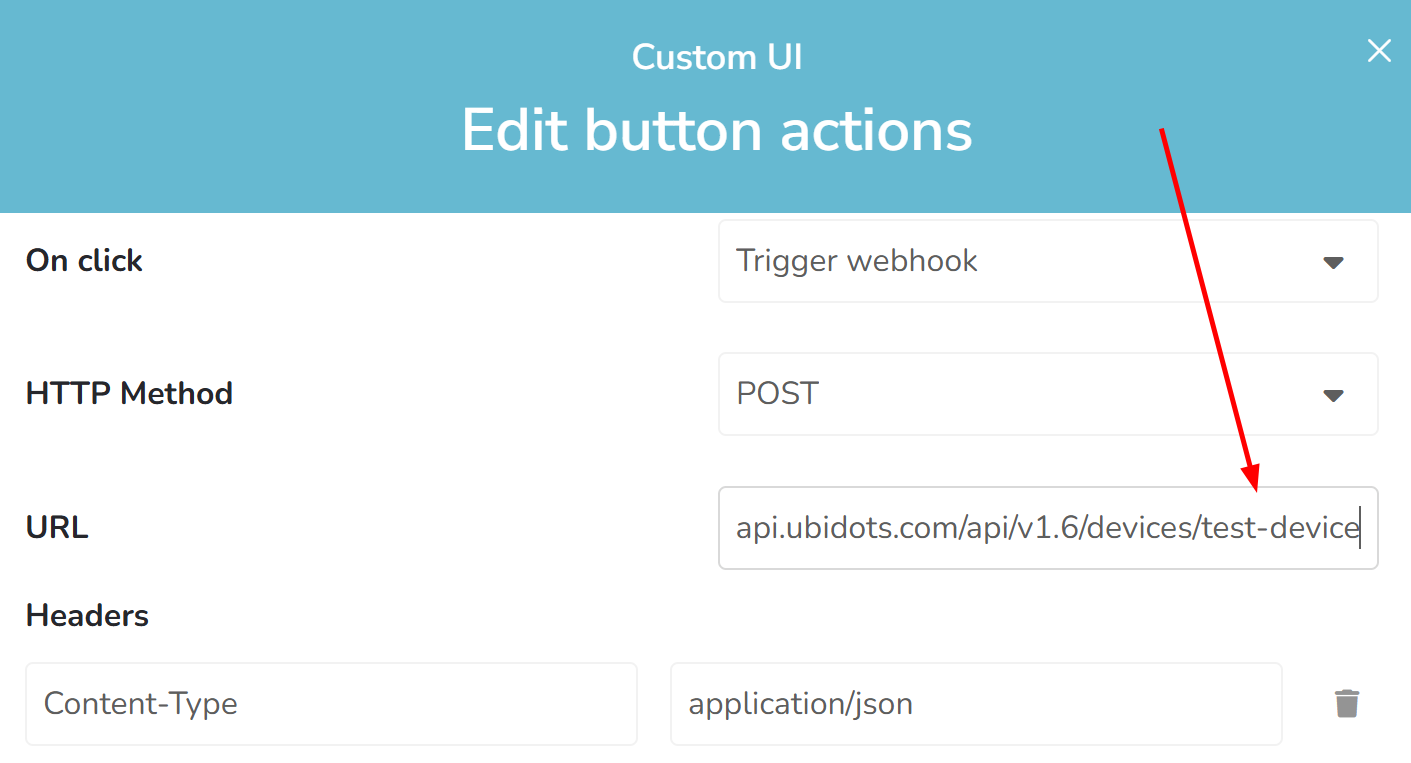
You can manually type the device label directly into the URL, as shown in the following image; however, this is not very efficient. It would require you to manually update the label every time you replicate the widget for a different device.

3. HTML Canvas

While the previous options are functional, they don’t fully meet your specific requirements. In this scenario, the best alternative is to create an HTML Canvas widget. This powerful tool allows you to use your own HTML, CSS, and JavaScript to build a custom solution. You can design a simple form similar to the Manual Input widget that sends data via a button, but with the added benefit of using a simple API GET request to retrieve and display the variable’s last stored value in the text field every time the dashboard loads.

This article will help you understand how to connect your JavaScript logic to your account data and use our API:

HTML Canvas Widget: Interacting with account data | Ubidots Help Center

Please let me know if this helpful for you or you still need further assistance.

Best regards,

Alejandro
Hello! @alejomora7 Thank you for the clarifications.
I created this simple code to receive a string as input and send a numeric value to a test variable, just to verify that I can send an input from an HTML Canvas to my Ubifunction. However, I haven’t been able to make it work yet.

I’m not sure whether the issue is in the JavaScript code inside the Canvas or in the Ubifunction itself. The Ubifunction is configured as POST, and when I test it using “Save & Run Test”, it correctly returns one of the three expected values.

How can I properly connect the HTML Canvas with this Ubifunction?

Below is the code:
HTML CANVAS.txt (4.4 KB)
Basic ubifuction.txt (1.4 KB)

I have a quick question regarding the implementation: What is the purpose of the UbiFunction here? I understand you are using HTML Canvas to display the last value and send new data directly to the variable. Since you could handle this data sending directly within the Canvas JavaScript using a simple fetch function, just like you retrieve the last value, is not clear for me why the UbiFunction was implemented at this point.

Does that make sense?

The Ubifunction is triggered when I press a button, and only at that moment the data is sent based on that button action. A quick example of what I want to achieve: I have two devices (device1 and device2). Device1 has a variable called voltage, and device2 also has a variable called voltage (each one is completely independent, they just share the same variable name).

When I press a button, an event triggers my current function, and the code is predefined to read data from device1’s voltage variable and send it to another variable on a third device (device3).

What I want to do is allow the user to manually type an input string such as “device1” or “device2”, and store this value in a variable inside the Ubifunction so the function knows from which device it should read the voltage variable. Then, only when I press the button, the event should trigger and the function should read the voltage from the selected device and send it to device3.

My question is: Is it possible to handle all of this directly inside the HTML Canvas?
Maybe even avoid using an external button widget and include the button directly inside the HTML Canvas?

Additionally, I would like to know if it is possible to include the logic of my current Ubifunction inside the HTML Canvas, instead of using the Ubifunction section. That is, move all the code directly to the HTML Canvas and handle everything from there.

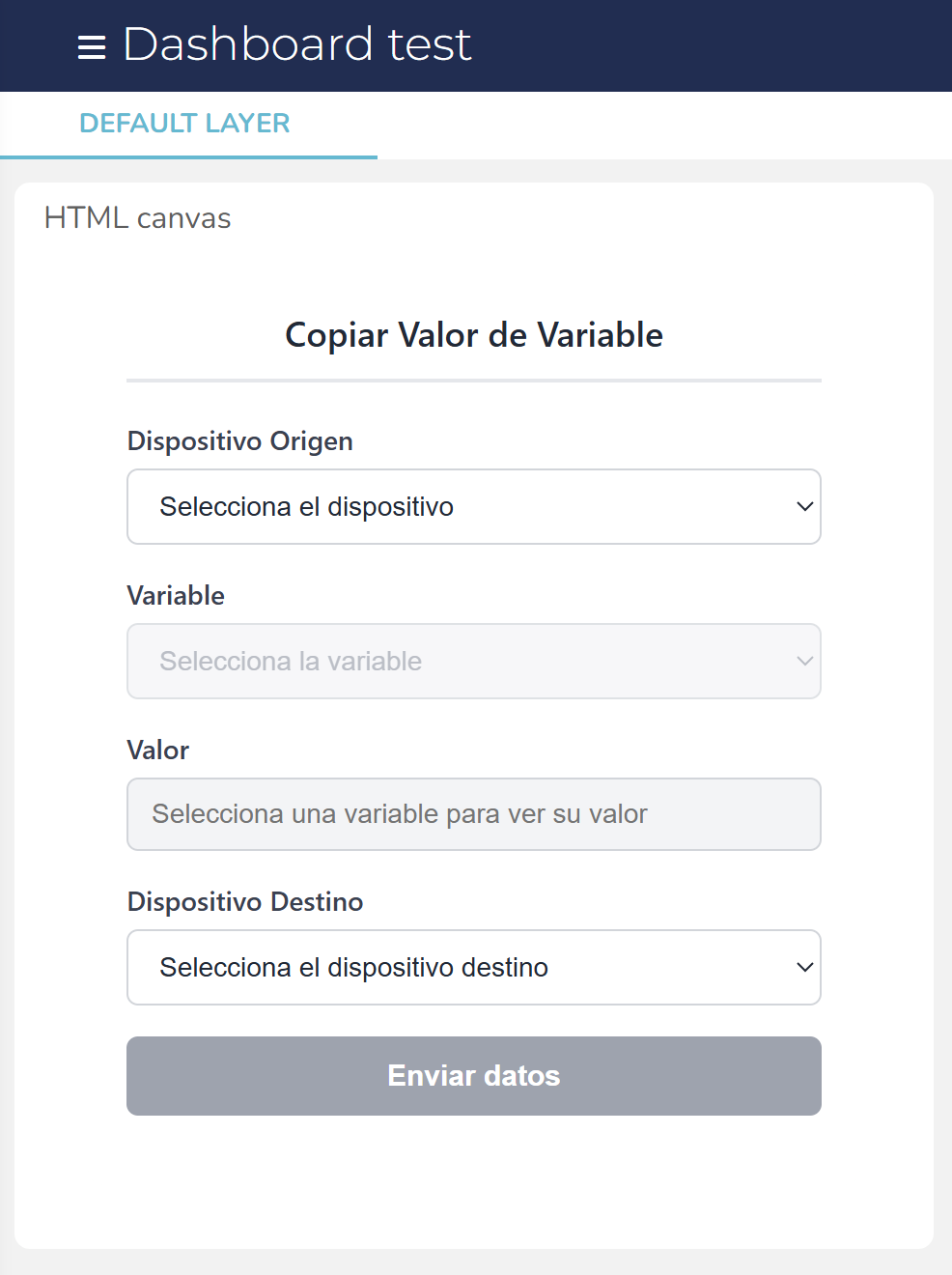
All the necessary logic can be handled directly within the HTML Canvas widget, making the UbiFunction unnecessary for this specific scenario. I have created a simple demonstration Canvas on your account for this purpose. Please take a look and let me know if this solution is helpful for you.

Thank you very much! Your help has been useful for us to better understand the HTML Canvas. We have one more question: Is it possible to set a device in a Dynamic Dashboard using an API label? In the guide we saw that it can be done with the device ID, but we tried to create an input where we could type the device’s API label to avoid having a long list and instead just write it manually. We followed the guide, but we only saw that it can be done with the ID. Is it possible to do it using the device’s API label?
[HTML Canvas Widget: Interacting with account data | Ubidots Help Center]

You can use the device’s API Label rather than its ID, but you must include the tilde symbol (~) as a prefix:

Thank you! your help was very useful.

You’re welcome!